Registration
Players must be registered before they can be assigned to games in a live session. On the Registration tab you can add players in three ways:
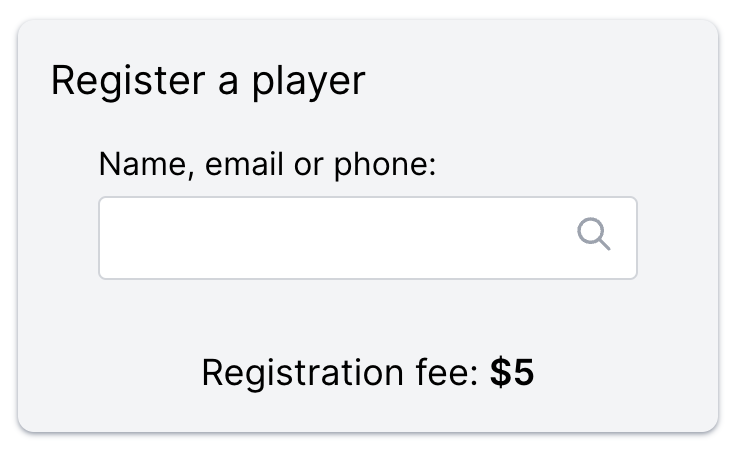
- Admin search — find someone in your club member book (or add a new player for this session) by typing their name, email, or phone number.
- Expected players — players who marked I'll be there in the player portal for this session date; click their name to register them in one step.
- NFC check-in — players scan their NFC sticker at the reader to register themselves (MixItOne desktop app with a USB reader).
Register from admin search
Use the player search at the top of the Registration tab to register people from the club member book or add someone new.
- Open the active session and go to the Registration tab.
- Type in the search box — you can search by name, email, or phone number.
- Select the player from the results, or create a new person if they are not in the member book yet.
- The player appears in the registered list and can be assigned to games.
Expected players
Players can respond to the next upcoming session in the player portal with I'll be there or No before the club night starts. When you run a session that matches that weekly session and date, those responses appear in the Expected players panel on the Registration tab.
- Make sure the session is linked to your regular weekly schedule (created from When we play on the club page).
- Players open the player portal, go to your club, and choose I'll be there for the upcoming session.
- When you start the session, open the Registration tab. The Expected players panel lists everyone who said they are coming but is not registered yet.
- Click a player's name to register them for this session in one step.
The panel shows how many players are expected in total. If everyone who marked attending is already registered, you will see a short confirmation message instead of a list.
Expected players only appear when the live session matches a scheduled weekly session date. Players need an email in the member book so their portal response can be matched — see the Members guide.
NFC registration
NFC check-in is for session admins who want faster registration at court. You set up a USB card reader, link stickers to players once, and players scan to register on later visits.
Set up NFC hardware and app access
- Download MixItOne for your platform (Microsoft Windows or Apple macOS).
- Connect a compatible USB card reader to your computer.
- Start a game session in MixItOne before scanning.
- If you need MixItOne NFC stickers and a reader kit, email [email protected] with:
- Club name
- Number of stickers needed
- Shipping address
- Support will confirm pricing and send an invoice (reader and sticker kit at cost plus shipping).
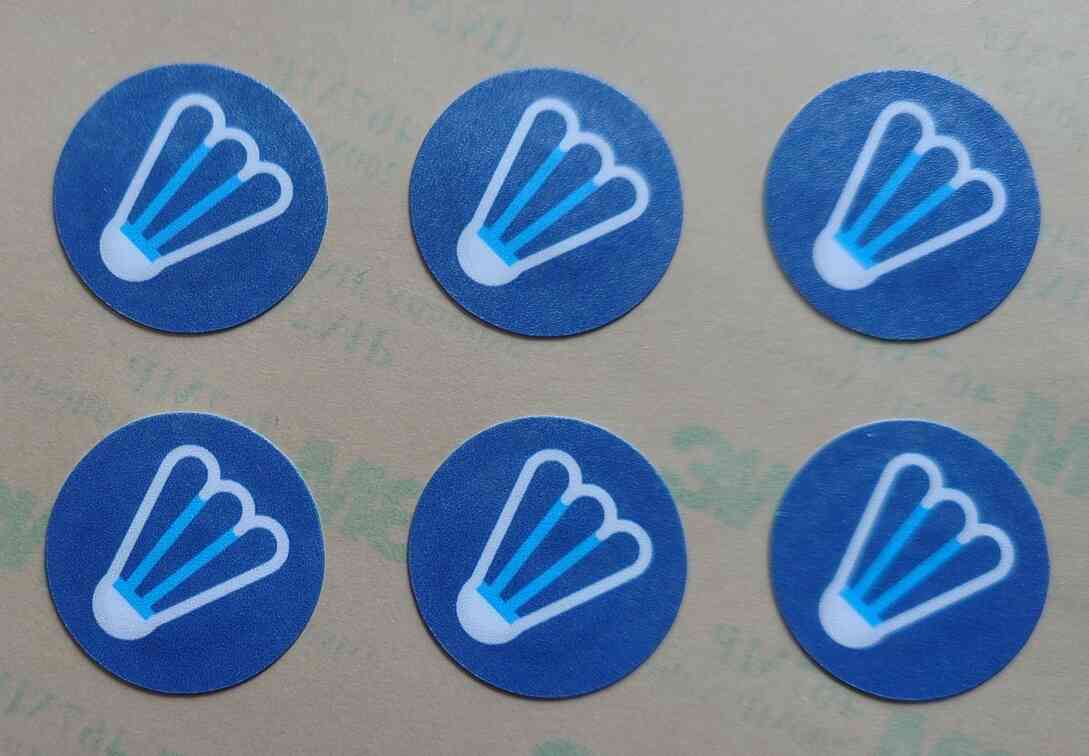
Once you've placed your order, you'll receive your stickers, which are ready to be distributed to your players.
Using NFC stickers
- Open the active session Registration tab and confirm the scanner shows as ready.
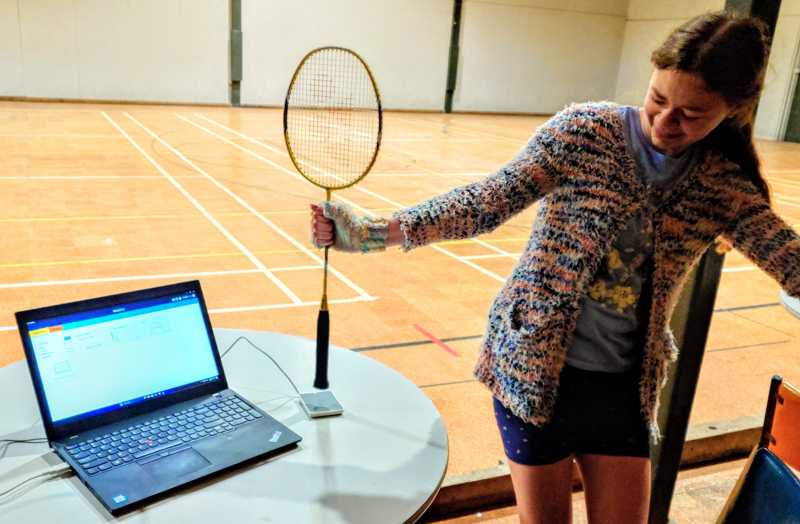
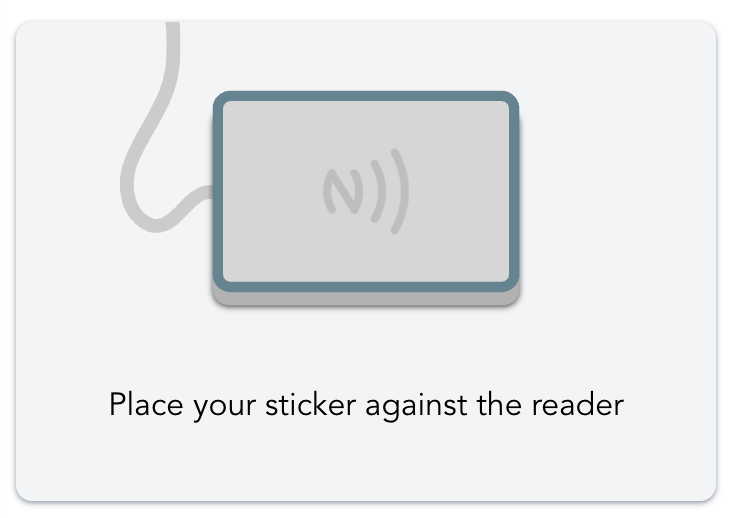
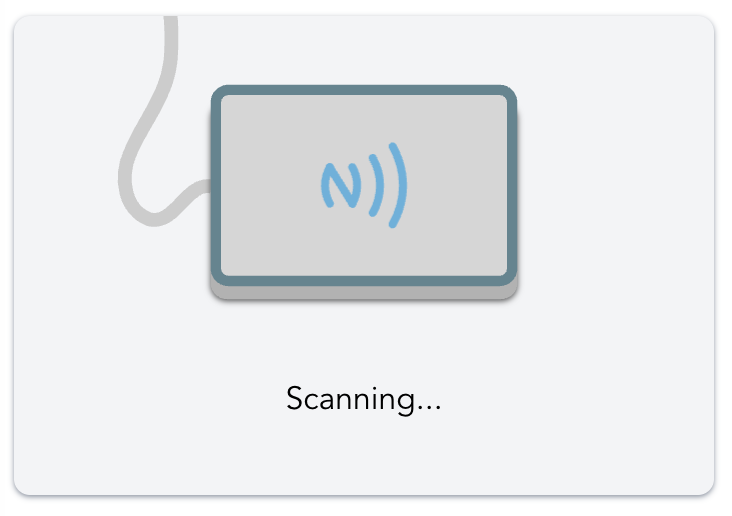
- Place a sticker or card on the reader.
 ➤
➤
- If the sticker is new, choose to create a new player or link an existing player.
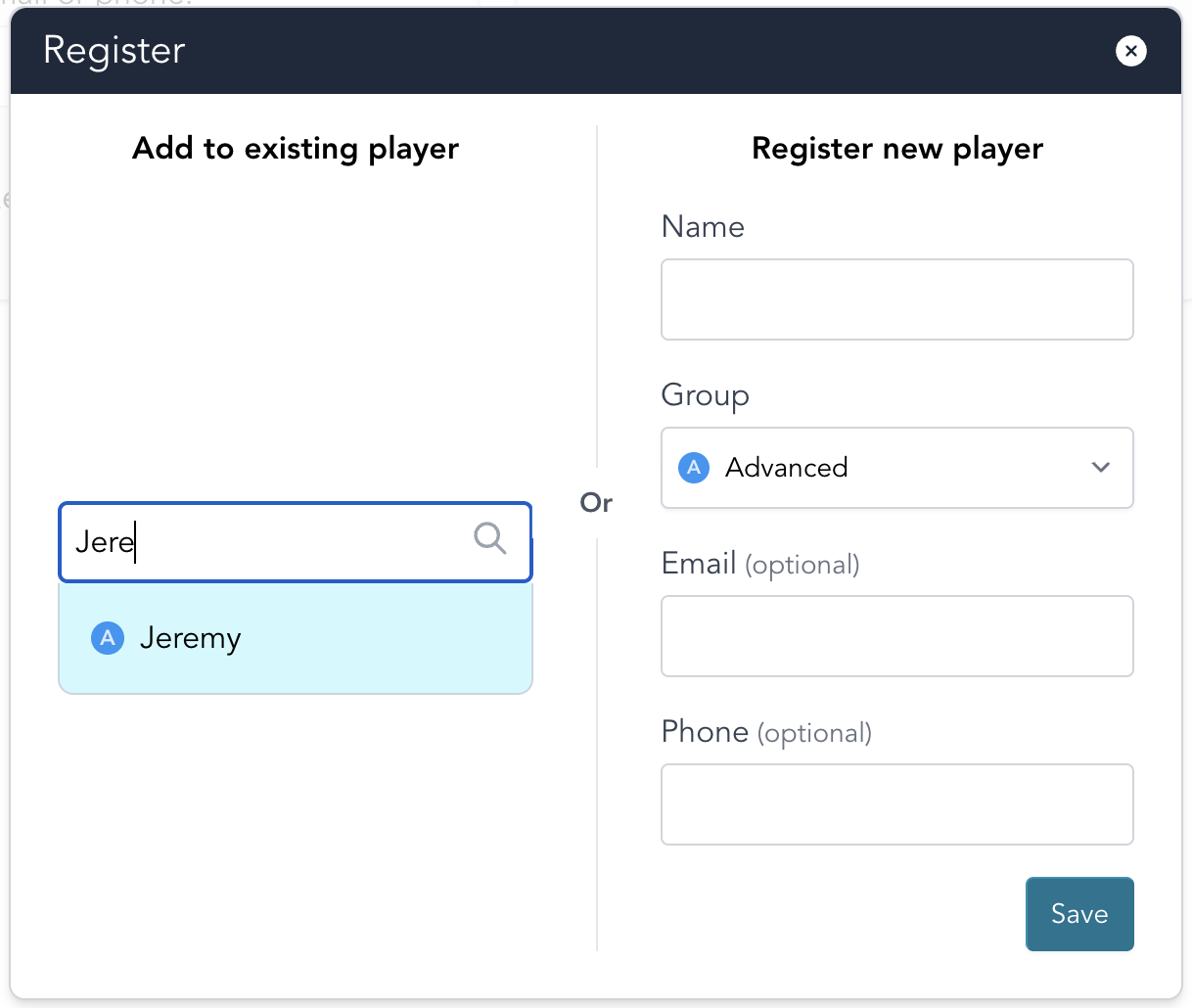
- Save the registration when prompted.
- Ask the player to scan again to confirm check-in works.
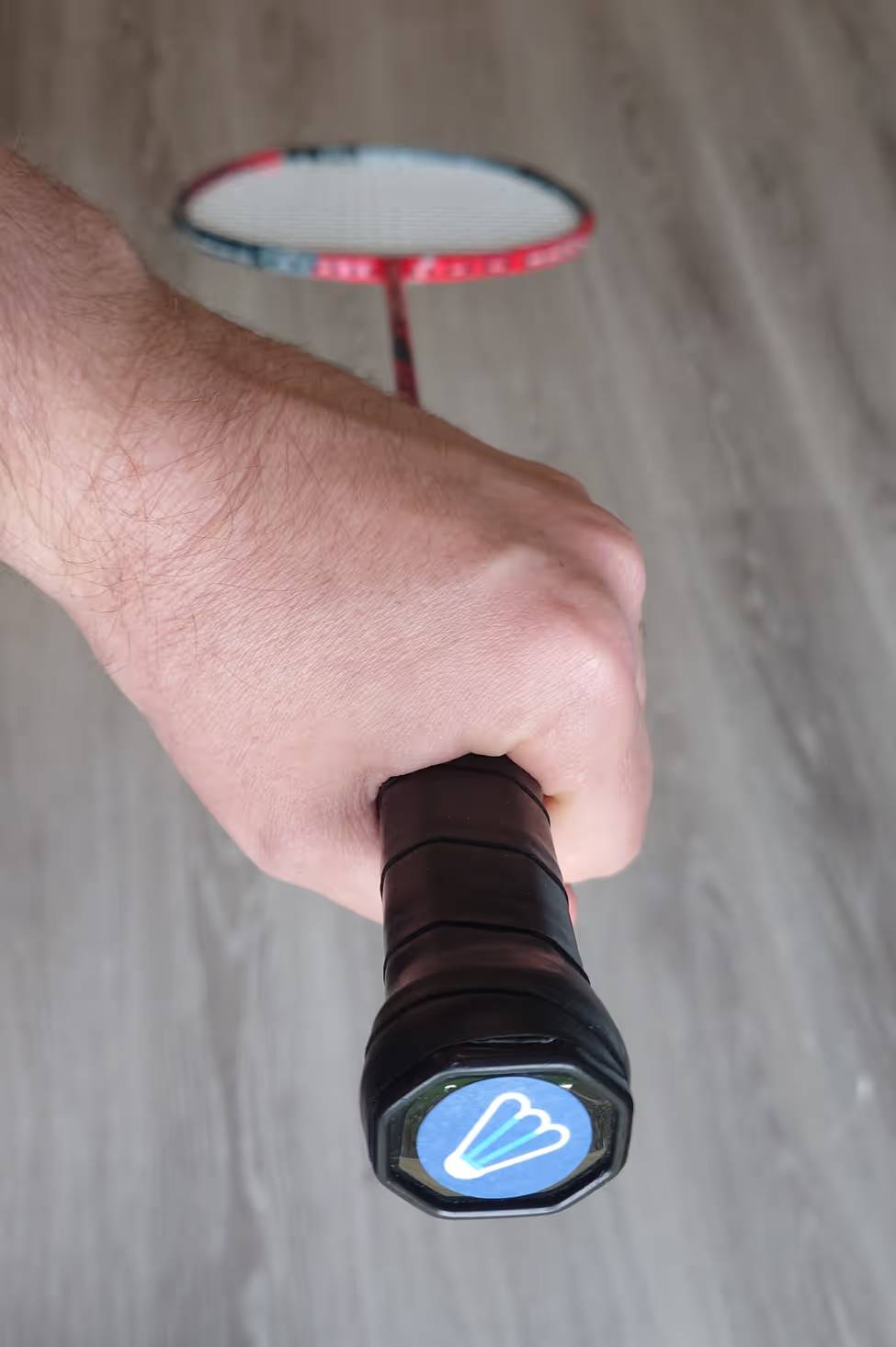
Stick the NFC sticker to a convenient location, such as the base of a badminton racket.
NFC troubleshooting
Scanner not ready
Make sure a session is running and the USB reader is connected.
Sticker is not recognized
Reposition the sticker on the reader and try a second scan.
Wrong player linked
Re-scan and update the player selection in the registration prompt.
Player cannot check in
Confirm the sticker was saved to that player record, then scan again.
Using with multiple clubs
If you're a player at multiple clubs, you can use the same NFC sticker at each club.